After you add learners to the platform, they will receive an email inviting them to access their account. At this point, learners will be able to see workshops, courses, and resources you've assigned them, and will also be able to self-register for any training that's available to them.
Add learners individually
Bulk upload a learner list
Add learners individually
This process works best when you only want to add a few learners at a given time.
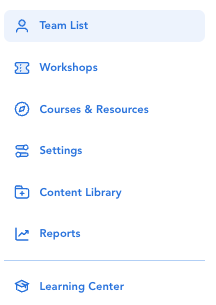
Select "Team List" in the left hand navigation pane.
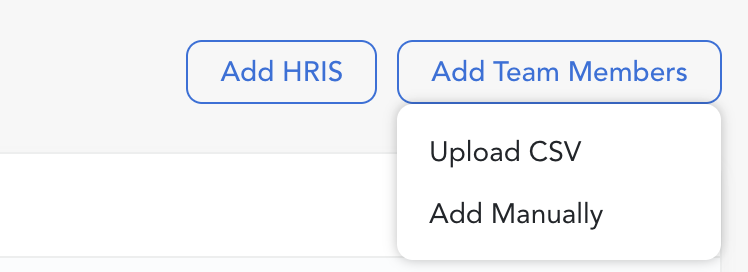
Click the "Add Team Members" button and select 'Add Manually'.
Fill out the information for your learner and click "Save Learner."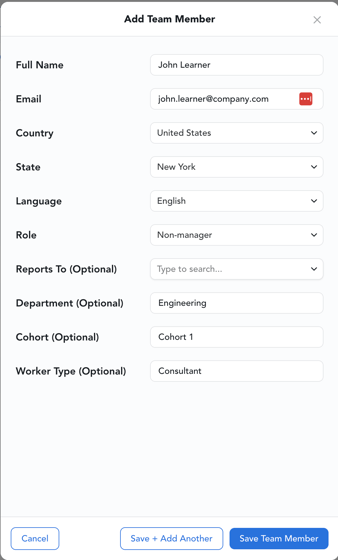
You can choose to save and add another new team member, or save and close to return to your Team List page.
Looking to group your learners with an easy way to filter by group? Leverage the optional "Cohort" field to identify which group a learner is in - then filter on that property from the Team list, or within the Reports tab.
Bulk upload learners
We recommend using this process when you have large groups of learners to add to your account.
First, prepare your learner list .csv file for upload.
Click here to view a sample CSV with instructions.
After you've prepared your .csv, select "Team List" in the left hand navigation pane.
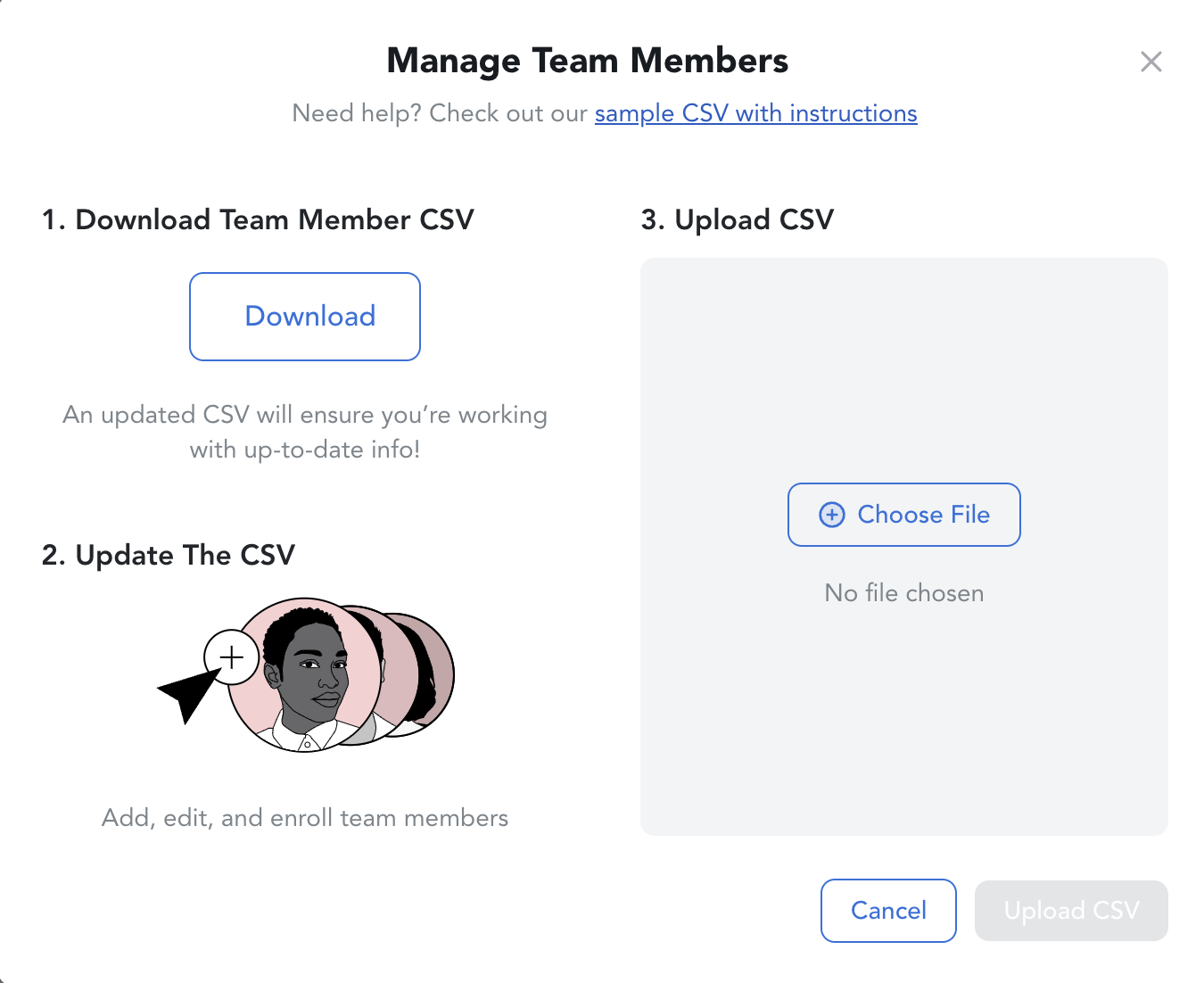
Click the "Add Team Members" button and select 'Upload CSV'.
Click "Choose File" under the "3. Upload CSV" option, select the .csv file you'd like to upload, and click the 'Upload CSV' button.
Pro-tip: leverage the optional 'Cohort' column to group your learners for upcoming programs and filter your team list and reports. We recommend using unique numbered or named cohorts (e.g., Cohort 1 + Cohort 2, or SF Managers + NY Managers) so you can identify those folks clearly.
That's it! Once uploaded you'll be able to view your learner list inside of your LifeLabs Learning admin account.