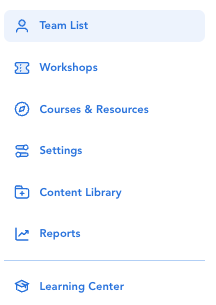
Select "Team List" in the left hand navigation pane.
Click the vertical ellipsis button (  ) next to the learner you want to update
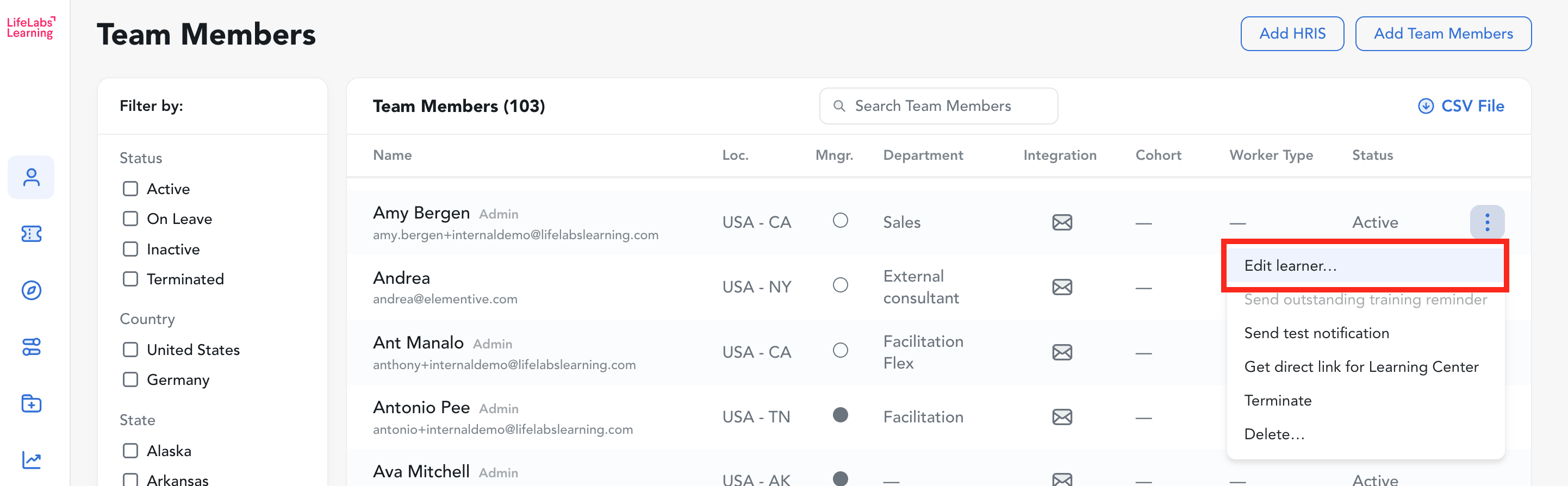
Select the desired option based on what you're looking to do:
| Action | Outcome |
| Edit |
Select this option to edit the learner's info. This will re-open the original window where you entered your new team member’s information. You can make any necessary changes to the learner's name, email, department, state or managerial status in this window. |
| Send training reminder notification | Select this option to immediately send an email reminder to your team member to complete any pending training you assigned them. |
| Get direct link for training |
Select this option to copy this team member's magic link (i.e., personalized access link for the LifeLabs Learning Platform) to your clipboard. You can send this link to the team member to enable them to directly access the platform and continue their training. The link will adjust to pick up where the team member left off, whether that is at the very beginning of training or after completing other nudges. |
| Terminate |
Select this option to discontinue a team member's training and access. They will still remain on your Team Members page under "Terminated" status. This allows their historical data to remain accessible via the admin hub. Once a learner has been moved to terminated, you can reactivate them when needed by selecting "Activate". |
| Delete |
Select this option to completely erase your team member's progress and account with LifeLabs Learning. This is non-reversible so once you choose it, you will have to re-enter the team member's information if you choose to re-enroll them in training. If you re-add them, their historical data will not be accessible. |