This article represents the current invite experience. This applies to all invites you send on or after April 14, 2026.
Looking for info about invites you sent prior to April 14, 2026? See this section to understand the relevant user experience for invited learners and how to convert to the new invites, if needed.
You can invite your learners as required or optional attendees individually or via CSV upload.
Use the steps below to invite learners to workshops in the LifeLabs Learning platform.
- Invite learners to a workshop
- Remove learners from a workshop
- Remind learners to respond to an invite
- FAQs
Invite Learners to Workshops
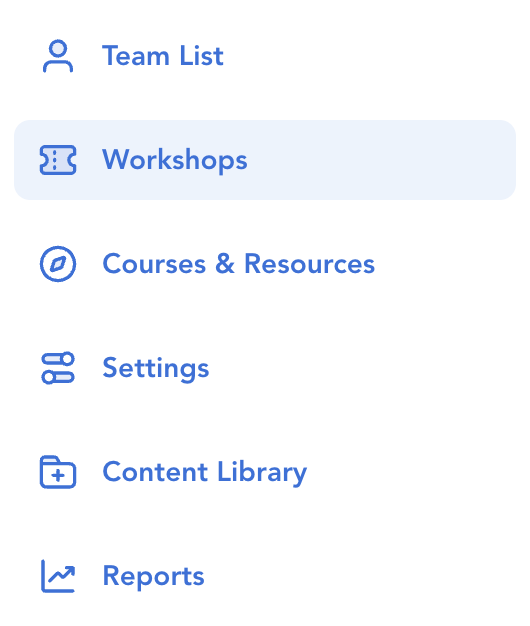
(1) From the Admin Hub, click into "Workshops" from the left side navigation.
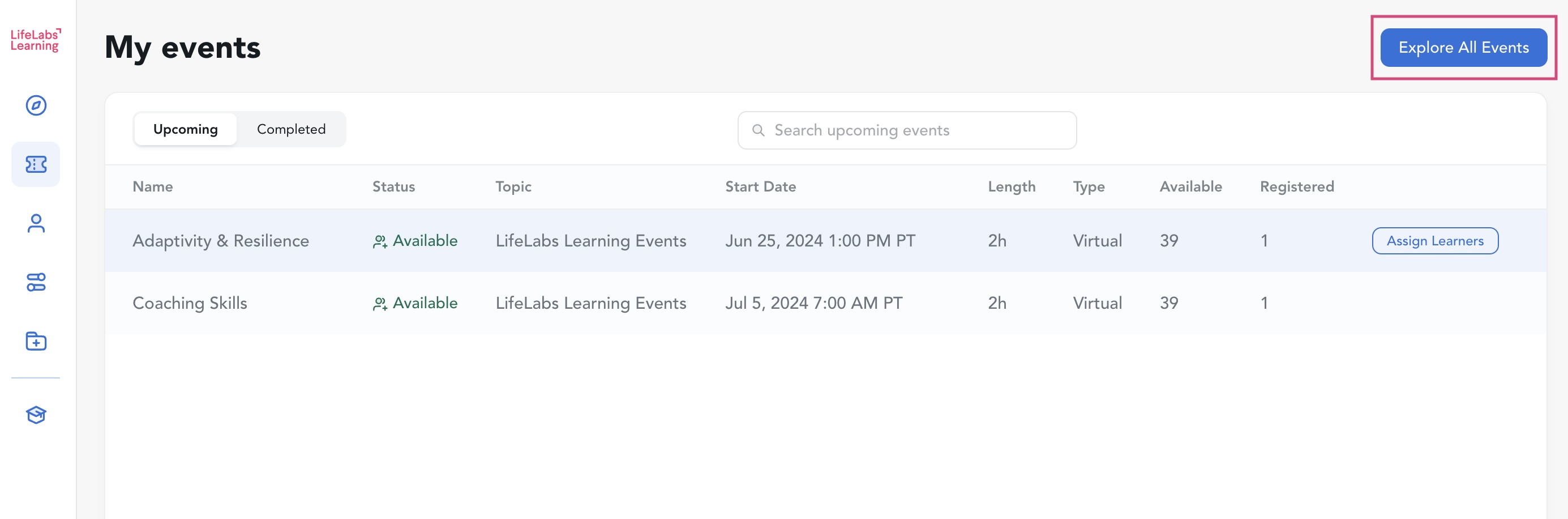
(2) Review your organization's events within the Upcoming List view or click the blue "Explore All Events" button for a grid view. For Membership workshops, you will need to click into "Explore All Events" to see the full schedule of available sessions.
(3) Click on the specific event you're looking for. Use the search bar at the top of the page or the filters on the left side to narrow the list of events.
(4) Click the blue "Add Learners" button in the top right corner.
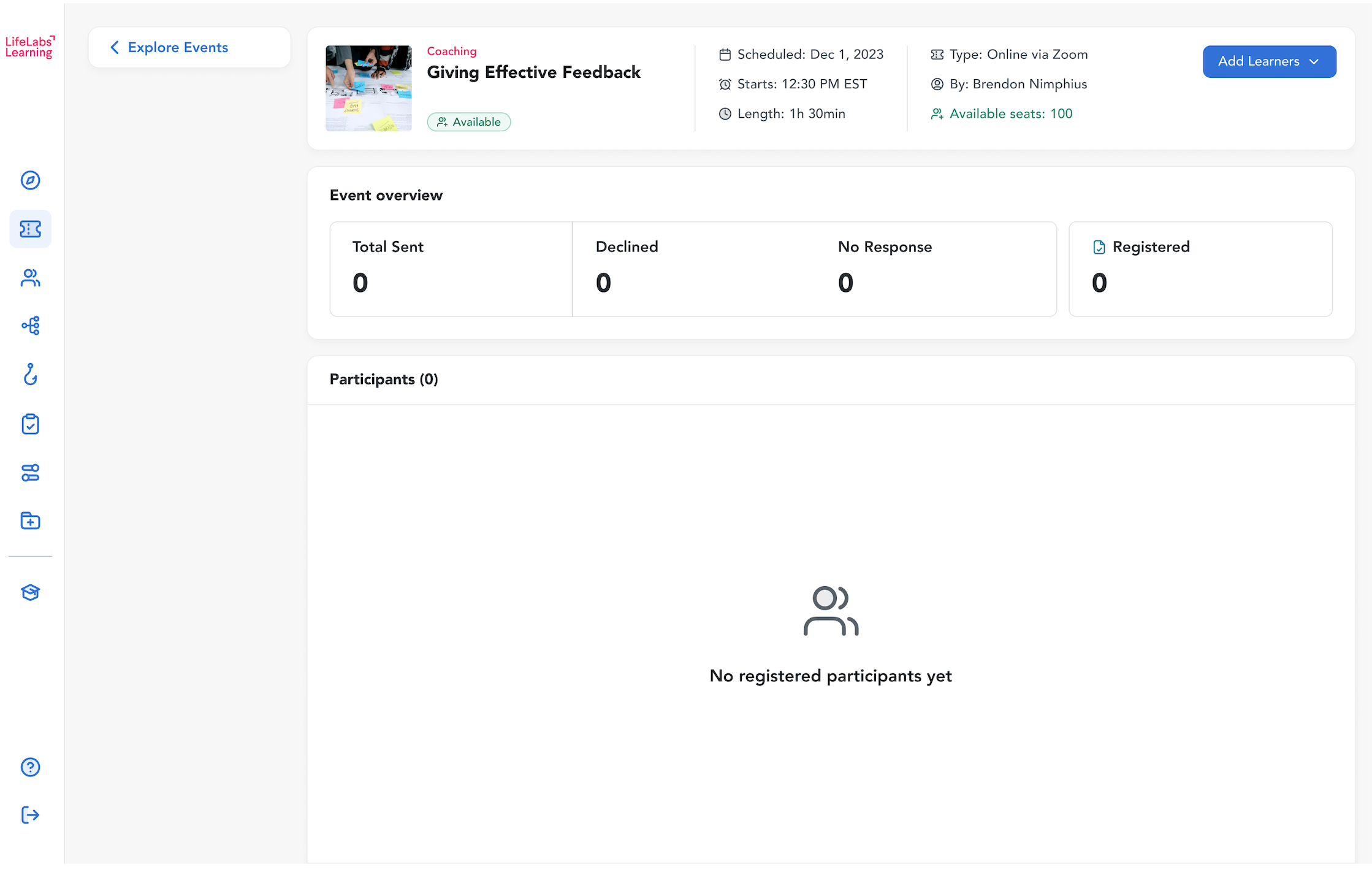
(5) Invite your learners by selecting one of the options from the dropdown:
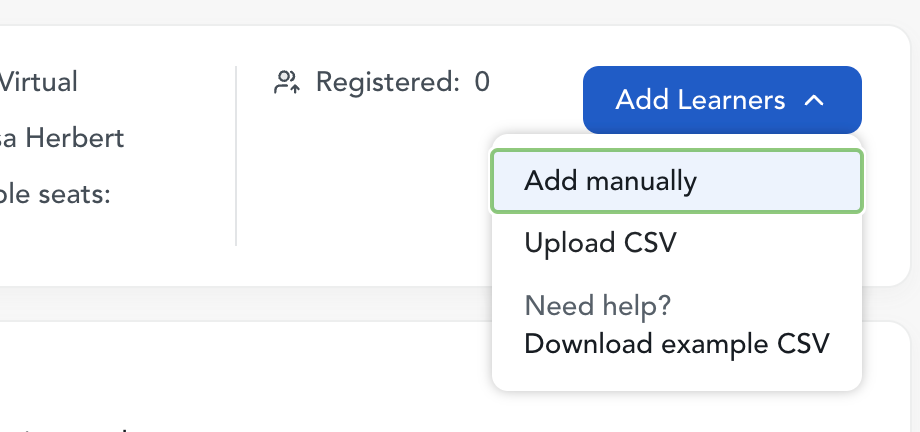
Option 1: Add manually
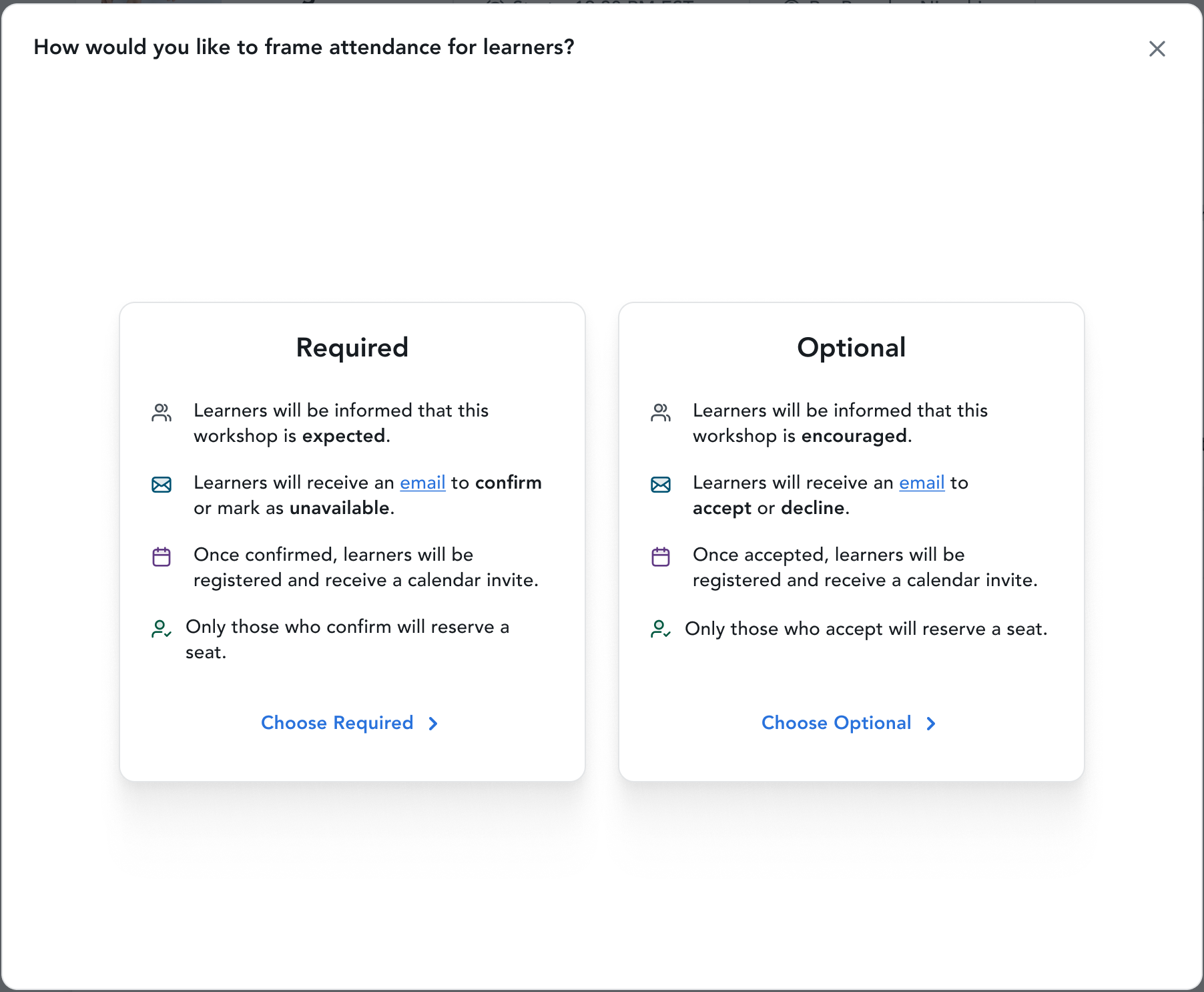
1. Select an invite type to set attendance as either required or optional.
-
-
- Want to invite some learners as required and some as optional? We recommend the CSV upload! If you prefer to add learners manually, you'll complete the steps below once selecting 'Required' to invite relevant learners and then repeat the process and select 'Optional' to invite the relevant learners.
-
2. Select from your list of learners in the platform by checking the box next to their name(s) or click 'Select All' at the bottom of the pop-up to register all your learners.
3. Filter by location, department, or keyword as needed using the filters in the left side column.
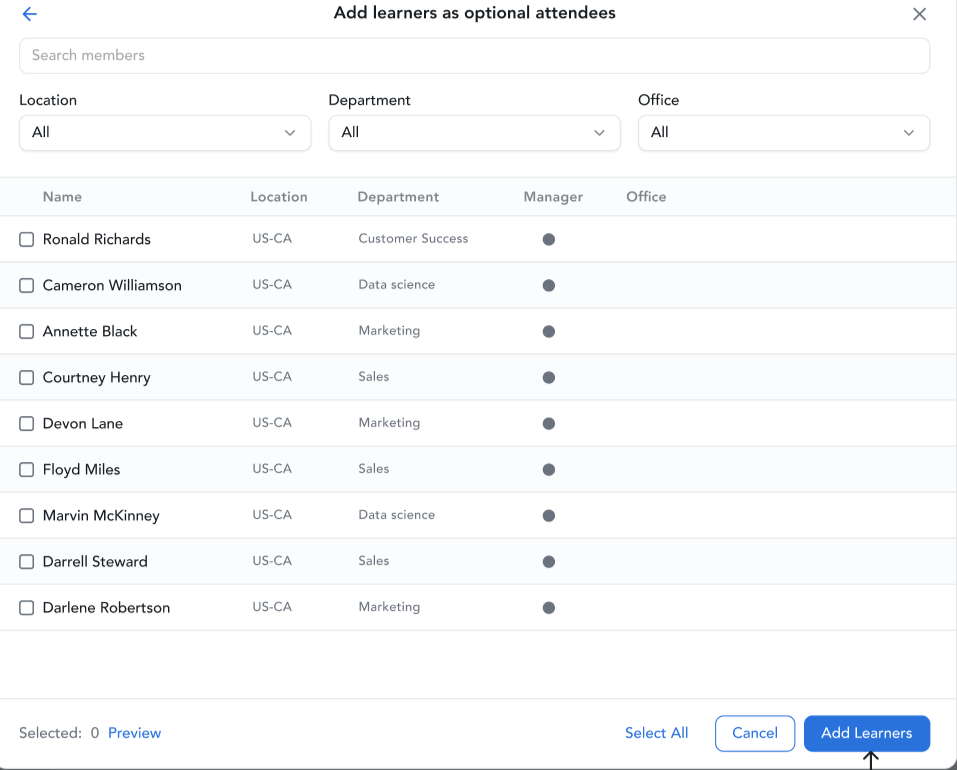
4. Click "Add learners" in the bottom right corner of the pop up.
Option 2: Upload CSV
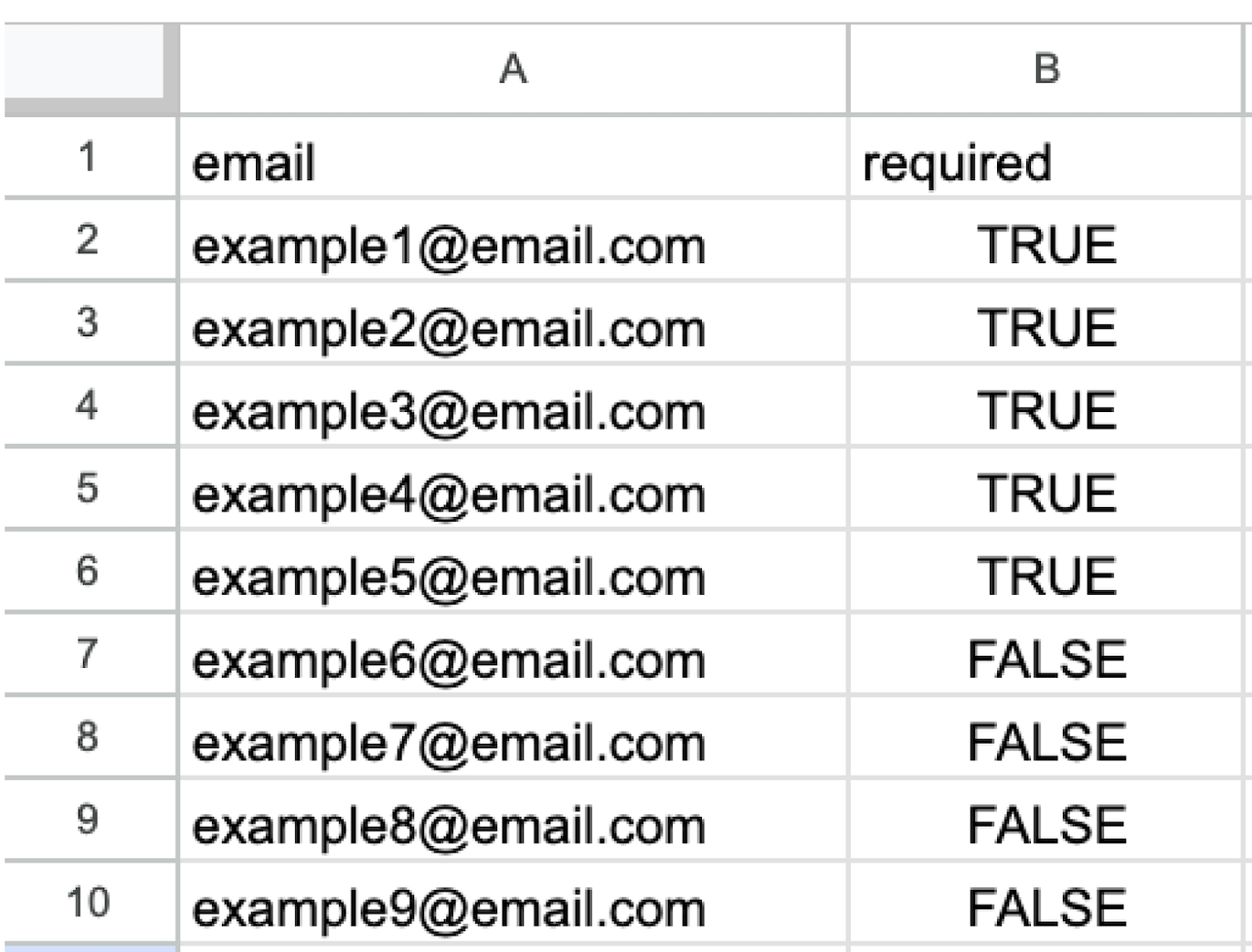
1. Download the example CSV from the dropdown and populate it with the email addresses of the learners you want to assign.
2. Set the event attendance in the second column and save.
-
-
- For learners you want to invite as 'Required', insert "TRUE" in column B.
-
-
-
- For learners you want to invite as 'Optional' insert "FALSE" in column B.
-
3. You can set event attendance expectations for each learner individually. This is helpful when attendance is expected for one group of learners and optional for another group.
4. Upload the .CSV from your device.
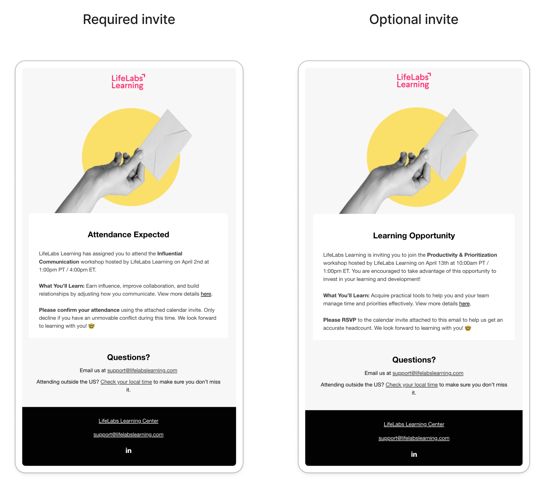
Once invited, learners receive an email + calendar invite with a call to action.
-
-
- Within the email, learners are prompted to RSVP and indicate if they are able to attend.
-
-
-
- All learners receive an event on their calendar and will RSVP [or update their RSVP] from that calendar event.
- If event details are changed after a learner is invited, all invited learners will receive an email notification and will see the new details reflected on their calendar.
-
(6) View learners' RSVP status in the platform:
-
- In the Workshops tab of the Admin hub, find an overview [per event] of
- Available: # of available/remaining open seats
- Registered: # of learners who RSVP'd 'Yes' to the calendar invite (or self-registered, if available for that event)
- Sent: # of learners invited
- In the Workshops tab of the Admin hub, find an overview [per event] of
-
-
- Declined: # of learners who RSVP'd 'No' to the calendar invite
-
-
-
- Pending: # of learners who have not responded or RSVP'd 'Maybe'
-

-
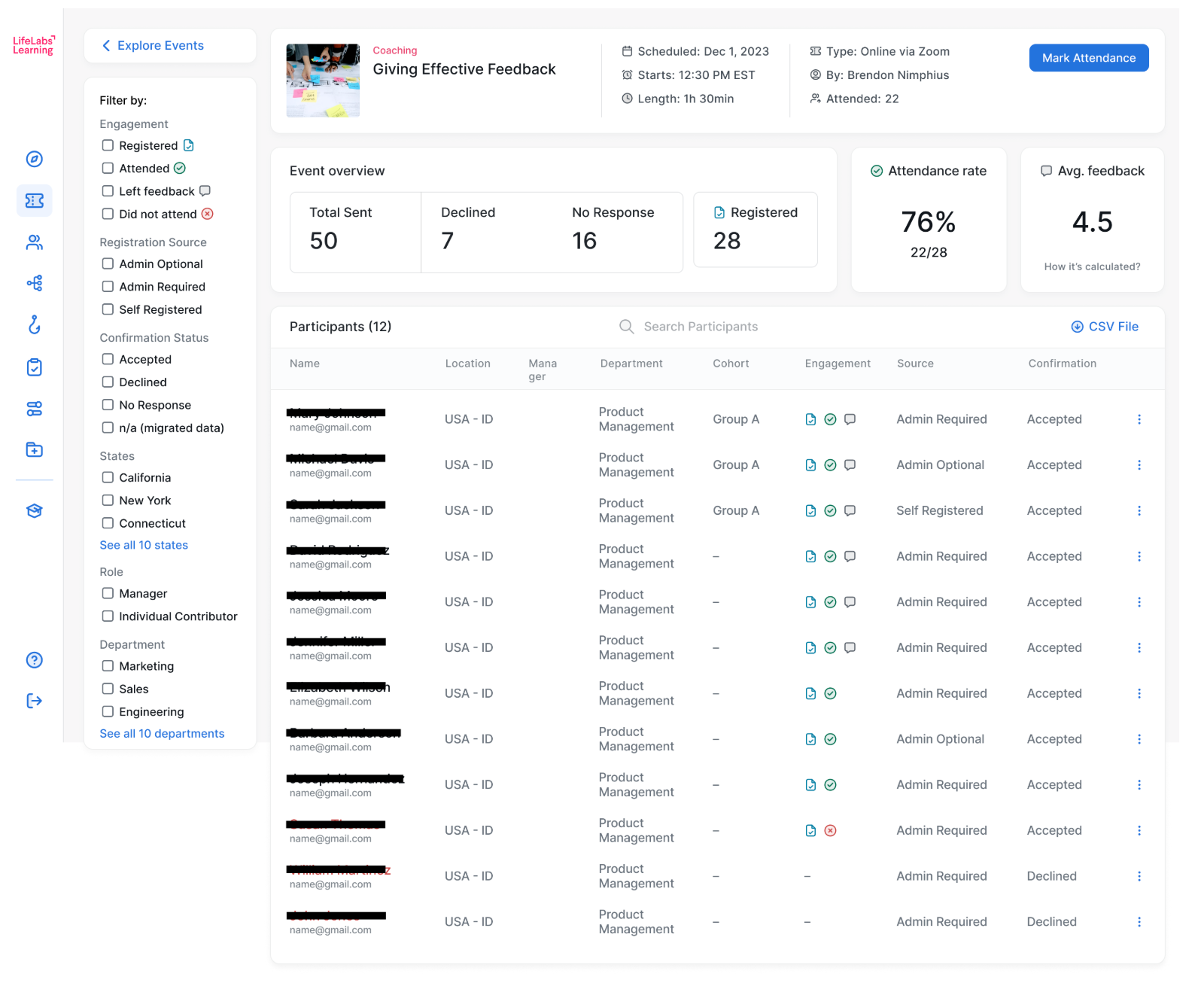
- Find detailed breakdowns for each learners' status by clicking into an event:
- In the Event overview box, "Registered" represents the total number of learners who RSVP'd 'Yes' the invite and/or self registered for the event (if available).
- In the Attendance rate box, you see this represented as % of Registered learners who are marked as attended, and you can also see the #attendees/#registered at the bottom of the box.
- In the Engagement column, icons indicate each learner's status for whether they:
 = registered
 = attended the event
  = submitted feedback
- Find detailed breakdowns for each learners' status by clicking into an event:
-
-
- In the Source column, you'll see one of four values:
- Admin Required = Learners you sent a 'Required' invite to
- Admin Optional = Learners you sent an 'Optional' invite to
- Self registered = Learners who registered directly from the Learning Center without an invite. This is only possible for discoverable events. Reach out to support@lifelabslearning.com to learn more about discoverable events.
- Other = Learners who were A) not invited or self registered for the event, but are manually marked as "attended" by an admin after the event is completed, or B) not invited or self registered for the event, but do attend and fill out a feedback survey after the event.
- In the Source column, you'll see one of four values:
-
Repeat steps 1-3 as needed to register learners for other events.
Remove Learners from Workshops
If needed, you can remove a learner from a workshop they have been invited to, regardless of the learner's confirmation status (accepted/declined/no response).
When might this feature be helpful? Accidentally adding a learner to an event, or navigating scheduling conflicts and roster reshuffles.
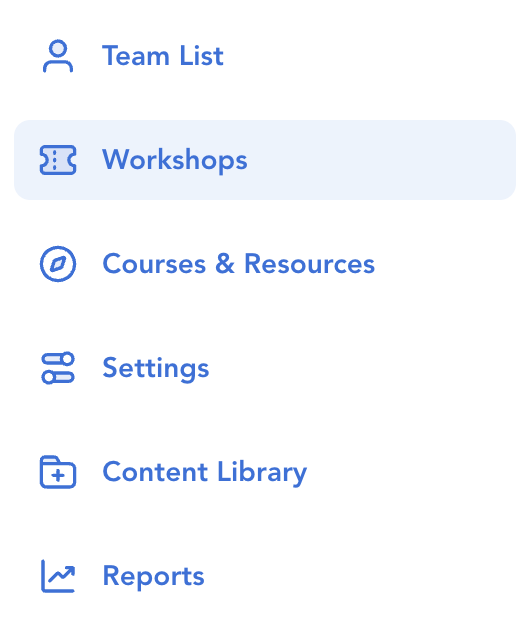
(1) From the Admin Hub, click into "Workshops".
(2) Open the event page for the workshop of interest. Your company's upcoming events will be listed in chronological order by default. Use the search bar at the top of the page or simply click on the appropriate event from the list.
(3) Click the vertical ellipsis for the relevant learner on the right side of the page and select "Remove learner from event".

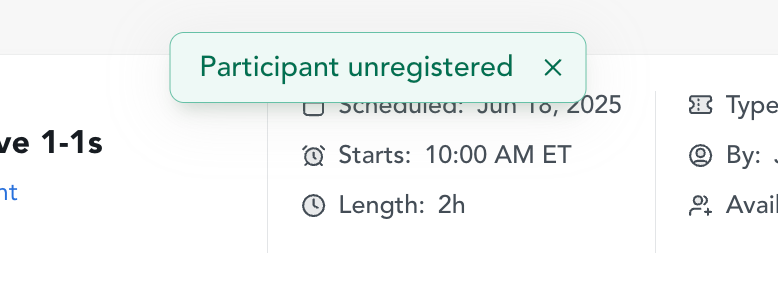
(4) You will see a confirmation banner at the top of the page to indicate this action has been completed successfully.
-
- Learner notifications: The removed learner(s) will receive an email notification and the calendar event will be removed from their calendar.
Repeat steps 1-4 as needed to register learners for other events.
Remind Learners to respond to an invite
If needed, you can initiate a notification to learners to remind them to RSVP to an event invite. This action will only trigger notifications for learners who have not responded. Learners who have already accepted or declined their invite will not see this notification.
(1) From the Admin Hub, click into "Workshops".
(2) Open the page for the workshop of interest. Your company's upcoming events will be listed in chronological order by default. Use the search bar at the top of the page or simply click on the appropriate event from the list.
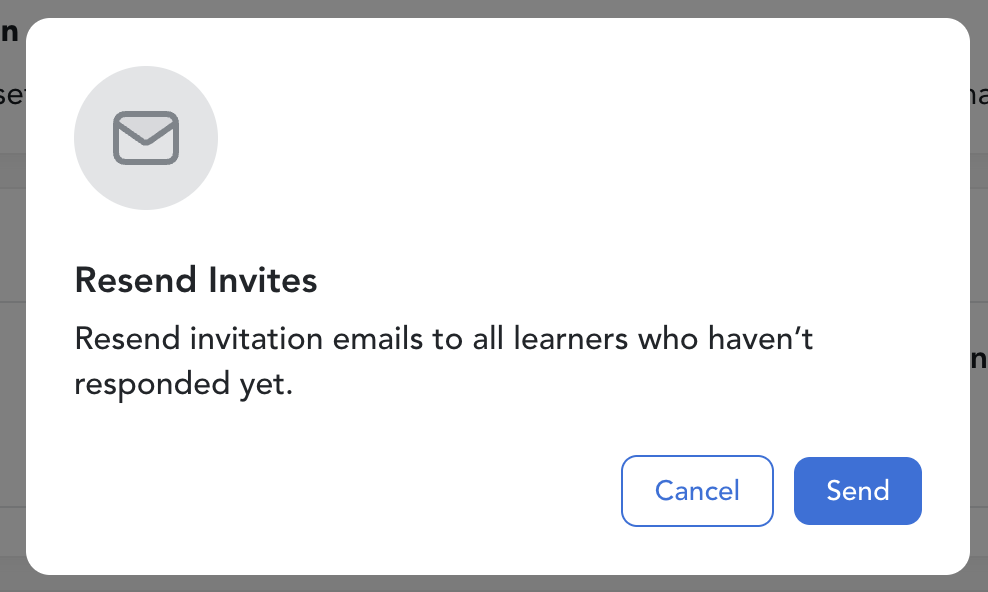
(3) Click 'Resend Invites' on the right side of the Participants list, then click "Send" in the pop-up window.

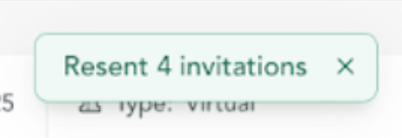
(4) You will see a confirmation banner at the top of the page to indicate this action has been completed successfully.
FAQs
Can I register learners for multiple events in a single upload?
No, that is not a feature we have at the moment. You will need to click into each event that you want to register your learners for, and then follow the steps above to register your learners.
Can I invite multiple learners to the same event with different invite types (i.e., some learners are set as 'required' and some learners are set as 'optional'?
Yes. Follow the steps above in Step (5) Invite Your Learners.
Can I invite more learners than there are available seats (e.g., can I invite 20 learners to an event with 10 available seats)?
Yes. All invited learners can RSVP 'Yes' and attend the event.
Can I un-invite or un-register a learner to an event?
Yes. You can remove a learner from a workshop they have been invited to, regardless of the learner's confirmation status (accepted/declined/pending). Please follow the instructions listed above in the Remove Learners from Workshops section.
Notes on learner experience:
-
- An email invite is triggered when you invite a learner, and there is no way to recall the email. However, if you accidentally invite a learner you don't want to attend a specific event, removing them from the event list will trigger a notification to that learner so they are aware they've been removed.
-
- Learners' calendar events are automatically removed from the learner's calendar when they are removed from an event.
Can I send a reminder to individual learners who have not responded to an invite?
Yes. You can remind learners to respond to an invite for a specific event by clicking into the event and then selecting 'Resend [required/optional] invite' from the dropdown ellipsis on the right side of the row for that specific learner. This will trigger the exact same email as the originally sent email. See example email copy above in this article.
Notes on learner experience:
-
- Does this learner have an * in the 'Confirmation' column? That means they will have a slightly different user experience. See more details here.
Will learners receive an email invite if you have notifications disabled for your account?
No. If you have notifications disabled for your account, learners will not receive a notification that you invited them to this event. Learners will not receive a calendar event either. In this case, learners will need to access the platform directly to respond to the invite.
Is there a way to add an event to learners' calendars before they RSVP to an invite?
Yes. This is the default function for all invites [that are sent after 4/14/2026]. Events are added to learners' calendars as soon as you invite them. This helps to ensure your learners have clear visibility to workshop timing with respect to their own calendars and commitments.
If a learner changes their RSVP status on their individual calendar event, will I have visibility to that in the platform?
Yes. You have visibility to learners' calendar event RSVP status via the platform. When a learner RSVPs on their calendar, it will automatically update their RSVP status in the platform. If a learner needs to change their RSVP status, they will need to do so from their calendar event.
Yes. Learners of any RSVP status can join a workshop. Upon accessing the event page from the link in their calendar event, all invited learners will see a "Join now" button.
If an event is rescheduled, will all invited learners receive a notification?
Yes. All invited learners will receive this notification.
Legacy - Invite learners to workshops
You are viewing documentation for the previous version of the invite experience. This applies to invites you sent prior to April 14, 2026. Invites sent after the release have been upgraded to the new interface. Click here to send a new invite.
Learn about what's new with the current invites and how to convert your legacy invites to the new invites, if needed.
How do I know if an invite was sent before April 14?
Check the 'Confirmation' column on the workshop page. Rows with an asterisk (*) indicate invites that were sent prior to April 14.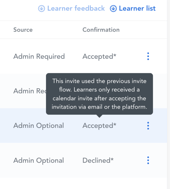
Navigate to the relevant section below to understand how your learners experience is different than documented above when you are taking these actions for a legacy invite:
Legacy - Invite Learners to Workshops
[For invites you sent prior to April 14, 2026]
You can no longer invite learners using the legacy experience. See this section to send new invites.
Key differences in the learner experience for invites sent before April 14 (compared to invites sent after April 14):
-
-
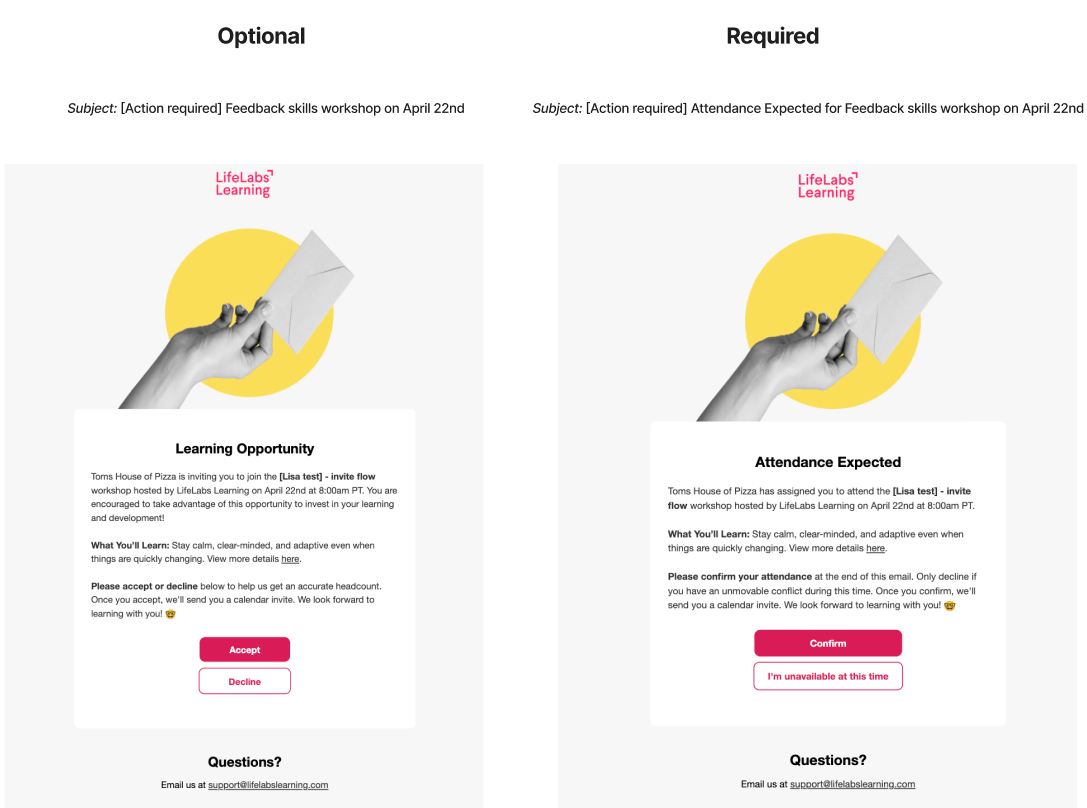
Notifications: Learners received an email invite with a call to action, but did not receive a calendar event, unless they accepted/confirmed the invite.
-
Within the email, learners were prompted to either confirm/accept the invite or indicate if they are unable to attend.
-
-
-
-
- ONLY learners who confirmed/accepted the legacy invite received an event on their calendar.
- Learners who initially declined/marked as unavailable or didn't respond will not see this event on their calendar [until or unless they respond in the platform to confirm their attendance].
- Notifications: If event details are changed after invites have been sent, ONLY registered learners (i.e., folks who confirmed/accepted the invite already) will receive an email notification and updated calendar event. Learners who declined or did not respond do not receive a notification.
- RSVP: RSVP status on learner calendars does not impact their RSVP status in the LifeLabs Learning platform.
-
Legacy - Remove Learners from Workshops
[For invites you sent prior to April 14, 2026]
Follow steps 1-4 in the current experience to remove legacy invited learners. The key differences listed below capture what your learners can expect after you remove them.
Key differences in the learner experience for invites sent before April 14 (compared to invites sent after April 14):
-
- Notifications: The removed learner(s) will not receive an email notification that they have been removed.
-
- RSVP: If a learner attempts to RSVP to the event after they are removed, they will receive an error message stating "This invitation is no longer valid". They will not be able to register for the event or accept the invite, unless you re-invite them.
- Removing and re-inviting will trigger the new invite experience. See convert your invites section for more info.
- RSVP: If a learner attempts to RSVP to the event after they are removed, they will receive an error message stating "This invitation is no longer valid". They will not be able to register for the event or accept the invite, unless you re-invite them.
Legacy - Remind Learners to respond to an invite
[For invites you sent prior to April 14, 2026]
Follow steps 1-4 in the current invite experience to send a reminder to invited learners. The key differences listed below capture what these learners can expect after you remind them.
Key differences in the learner experience for invites sent before April 14 (compared to invites sent after April 14):
-
- Notifications: learners receive the legacy invite notification. See the 'key differences' in the 'Legacy - Invite learners to workshops' section for details on notifications and calendar events learners receive.
- RSVP: Learners must RSVP via the platform or the invite email. RSVP status on learner calendars does not impact their RSVP status in the LifeLabs Learning platform.
Note: This action will only trigger notifications for learners who have not responded. Learners who have already accepted or declined their invite will not see this notification.
Legacy - FAQs
[For invites you sent prior to April 14, 2026]
FAQs are only listed below if the answer for legacy invites is different than the answer for current invites.
Can I invite more learners than there are available seats (e.g., can I invite 20 learners to an event with 10 available seats)?
Yes. However, registration will operate on a first come, first served basis. Once the event is full, no more learners will be able to confirm or accept the invite and they will see a note on the event page that the event is full.
New functionality for invites sent after April 14:
Can I invite more learners than there are available seats (e.g., can I invite 20 learners to an event with 10 available seats)?
Yes. All invited learners can RSVP 'Yes' and attend the event. Learners will not be blocked from joining if all seats have been registered for.
Can I un-invite or un-register a learner to an event?
Yes. Follow the instructions listed above in the Remove Learners from Workshops section.
-
-
Removed learners do not receive an email notification to communicate the status change.
- Removed learners do not see changes reflected on their calendar. The event remains on their calendars.
-
Where appropriate, please communicate directly with learners so they are aware of changes to attendance expectations.
-
New functionality for invites sent after April 14:
Can I un-invite or un-register a learner to an event?
Yes. Follow the instructions listed above in the Remove Learners from Workshops section.
-
-
-
Removed learners do receive an email notification to communicate that they have been removed/uninvited.
-
Removed learners do see changes reflected on their calendar. The event is automatically removed from the learner's calendar when they are removed from an event.
-
-
Is there a way to add an event to learners' calendars before they confirm/accept an invite?
There is a workaround. Events are only added to learners' calendars after they confirm/accept a legacy invite. However, you can take a few simple steps to "convert" your legacy invites to the current invite experience.
New functionality for invites sent after April 14:
Is there a way to add an event to learners' calendars before they RSVP to an invite?
Yes. This is the default function for all invites [that are sent after 4/14/2026]. Events are added to learners' calendars as soon as you invite them.
If a learner changes their RSVP status on their individual calendar event, will I have visibility to that in the platform?
Not for legacy invites (i.e., not for invites you sent prior to April 14, 2026). If a learner needs to change their RSVP status in the platform, they will need to do so from the event page, which can be accessed from the calendar event or the original invite email.
New functionality for invites sent after April 14:
If a learner changes their RSVP status on their individual calendar event, will I have visibility to that in the platform?
Yes. You have visibility to learners' calendar event RSVP status via the platform. When a learner RSVPs on their calendar, it will automatically update their RSVP status in the platform.
-
-
-
You have the option to take a few simple steps to "convert" your legacy invites to the current invite experience, which will enable you to take advantage of all the benefits of the current invite experience, including visibility to your learners calendar RSVPs.
-
-
If an event is rescheduled, will all learners who received a legacy invite receive a notification?
No. Only registered learners will receive this notification. This includes learners who have accepted an event invite from an admin. Learners who have not responded to an event invite and learners who decline an event invite will not receive a notification.
-
-
Registered learners' calendar events will automatically update to reflect the updated event.
-
IF you want to notify learners who declined and/or did not respond to the invite, then you can resend the invite to those learners individually from the event page (see related FAQ above).
-
New functionality for invites sent after April 14:
If an event is rescheduled, will all invited learners receive a notification?
Yes. All invited learners will receive this notification.
Key updates to the invite experience - Current & Legacy versions
What are the key updates between the current invite experience (released 4/14/26) and the legacy invite experience? Here's what has changed:
| Learner interaction | Current Invites | Legacy Invites |
| Calendar |
All invited learners instantly receive a calendar event -- no prior RSVP needed! This is enables you to increase your learners' visibility to upcoming workshops you have invited them to. |
All invited learners receive an email. Only learners who RSVP 'yes' from the email receive a calendar event. |
| RSVP |
Learners RSVP directly on their calendar event. This automatically updates their RSVP in the platform. This enables you to increase your visibility to your learners' RSVP status. |
Learners must log in to the platform to RSVP to an event. RSVP-ing to the calendar event has no impact on the platform RSVP status. |
| Join a workshop |
Learners can now join an event in just 2 quick clicks! All invited learners can click the hyperlink in the calendar event to immediately land on the event page, then click "Join now" button. |
It could take up to ~8-10 clicks to join an event. Learners need to authenticate (i.e., log in) to the platform in order to view the event page, then they must RSVP 'yes' before clicking the "Join now" button. |
How can I identify an old invite? When viewing a specific event in the Admin Hub, you may notice asterisks(*) in the 'Confirmation' column for some rows. This indicates that an invite was originally created and sent to the learner(s) under the prior invite experience. 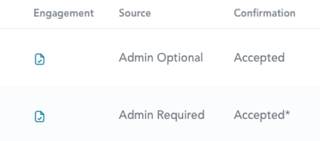
Convert your existing legacy invites to new invites
Do I have to convert my existing legacy invites?
No. This is not required. You can keep your existing legacy invites and your learners can still respond and join upcoming events from legacy invites. Over time the number of legacy invites will decrease as the events with legacy invites pass, and your upcoming events will be populated with all new invites naturally.
Can I convert my existing legacy invites?
Yes. While not required, this is possible. It requires a few manual steps and needs to be completed on an workshop-by-workshop basis.
Note: If you are converting optional invites, please reach out to support@lifelabslearning.com and we're happy to convert your invites for you.
Should I convert my existing legacy invites?
That depends. Ask yourself, "Will the benefits of the new invites help drive attendance for upcoming workshops I've already invited my learners to?"
-
-
Will getting an event on my learners' calendars increase their likelihood of attending the specific workshops in question? Learners who are out of the office on a workshop date are unlikely to have their attendance status impacted by the new invites.
-
What percentage of my outstanding invites in Pending or Declined status? These are the folks most likely to be impacted by receiving a new invite. Check this in the top right corner of your Reports tab in the platform.
-
If you decide to pursue this option, we recommend only taking this step for learners with a legacy invite that is currently in 'Pending' or 'Declined' status.
Why? Folks with pending or declined RSVPs don't currently have a calendar event and will not receive all the automated event notifications from the platform (e.g., event reminders, reschedule notices, etc.). Learners who have accepted status already have an event on their calendar and will already receive any notifications related to the workshop.
Convert your invites
**Note:
-
-
The steps below will create required invites for your learners.
-
If you wish to convert to optional invites, please reach out to support@lifelabslearning.com and we're happy to convert your invites for you.
-
(1) Navigate to the relevant workshop from the Workshops tab and download the learner list. Set this aside. You don't need to do anything with this yet.

-
-
-
Need help identifying the relevant workshop(s)? Reach out to support@lifelabslearning.com for a list of your events with learners invitees.
-
-
(2) Follow the steps to Remove [Declined and/or Pending] learners from workshops. Remove each relevant learner from the workshop 1 by 1.
-
-
-
Use the * in the 'Confirmation' column to identify which invites are legacy invites.
- These learners will not receive an email notification that they have been removed -- this is perfect for this use case because it reduces the number of notifications your learners will receive and helps to create more clarity for them on what to expect.
- We recommend not removing your learners who have already accepted the invite you sent. You can use the filters on the left to quickly find learners with the relevant confirmation status.
-
-
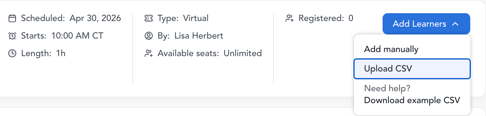
(3) Upload the learner list you just downloaded in step 1.
-
-
- This will create required invites by default.
- The folks you removed in step 2 will be re-invited, and there is no affect on learners who were still on the learner list after step 2 was completed.
- Reach out to support@lifelabslearning.com for support with creating new optional invites from your learner list.
- Re-invited learners will automatically receive a calendar event and email notification upon completion of this step.
- This will create required invites by default.
-
-
-
-
These learners have now been successfully converted to the new invite user experience!
-
-
That's it! Your learners have now received new invites and calendar events where they can RSVP and join the event.
Need help converting? Please reach out to support@lifelabslearning.com and we're happy to support you.