
There are times where after a workshop event has completed, that you may need to manually adjust attendance in the platform:
- Mark a learner as attended - take this step when a learner is not automatically marked as attended in the platform but they did attend the workshop (e.g., you had an in person workshop).
- Mark a learner as unattended - take this step for learners who are marked as attended, but did not fully attend the workshop (e.g., a learner is called into another emergency meeting 10 mins into a workshop and does not return).
Mark a learner as attended
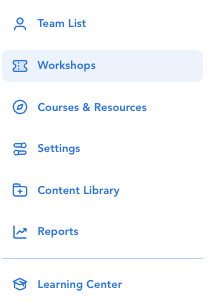
(1) Click 'Workshops' from the left side navigation.
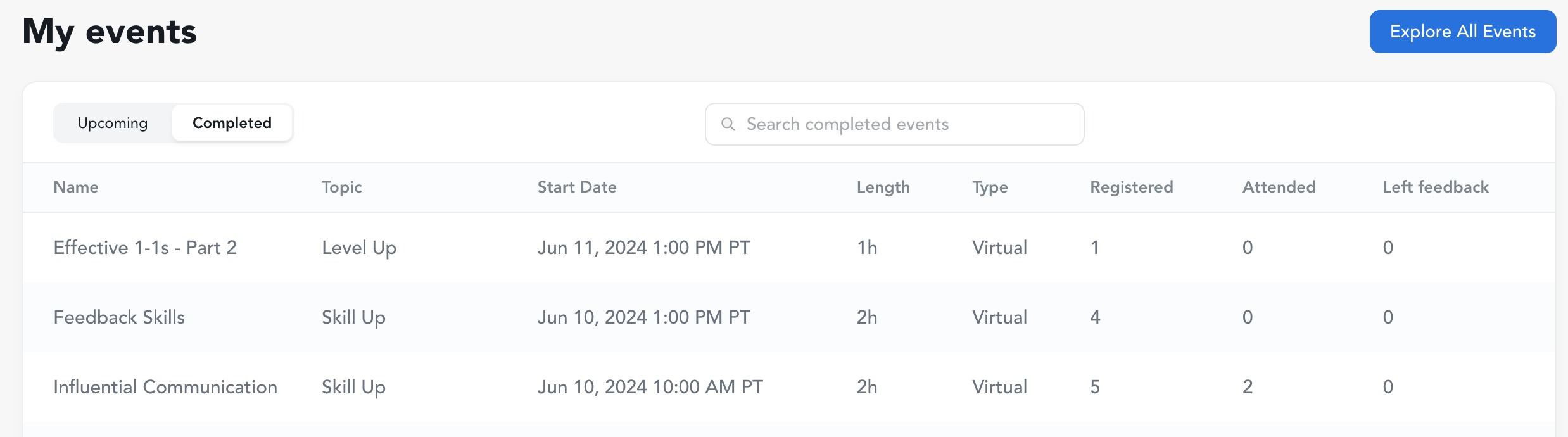
(2) Select the toggle for 'Completed' events near the top left corner under "My events" text.
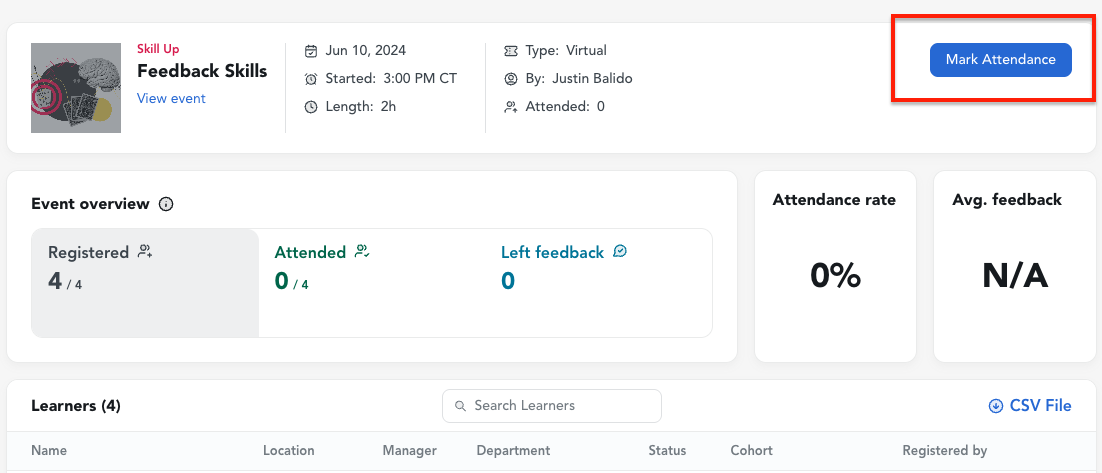
(3) Click on the relevant event and click on the "Mark Attendance" button.
Note: you can also mark attendance for individual learners by clicking the ellipsis to the right of their row in the Learners list for the event.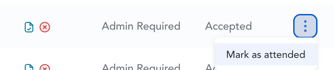
(4) Find and select the learners that need to be marked as attended and hit "Mark Attended"
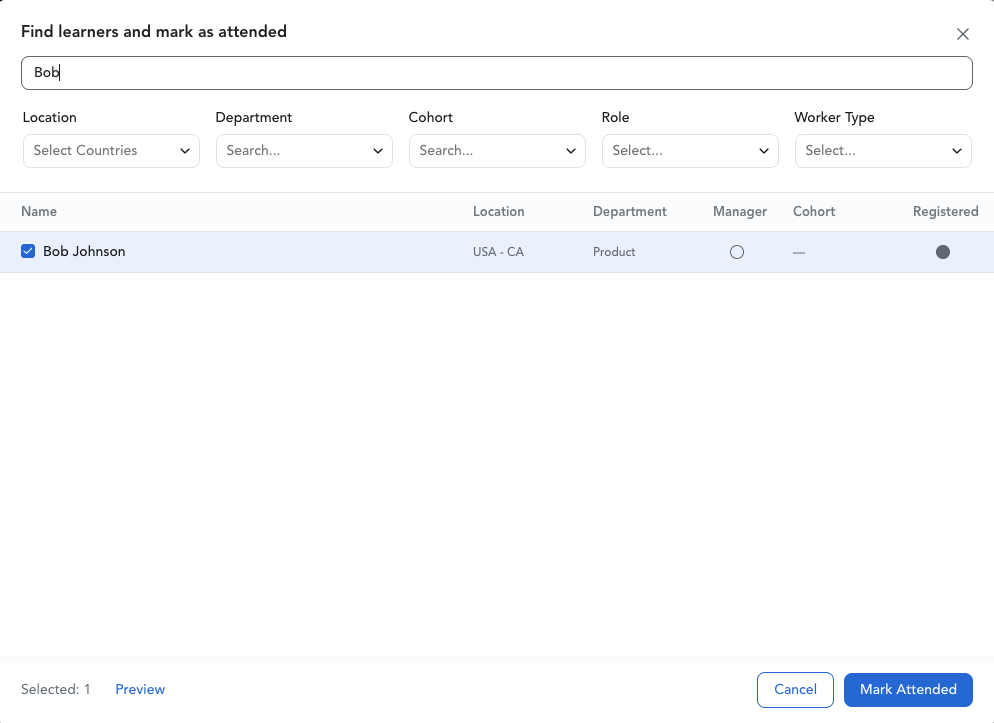
Mark a learner as unattended
(1) Click 'Workshops' from the left side navigation.
(2) Select the toggle for 'Completed' events near the top left corner under "My events" text.
(3) Click on the relevant event.
(4) Update attendance status for individual learners by clicking the ellipsis to the right of their row in the Learners list for the event.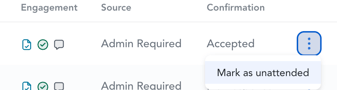
How does this affect feedback notifications?
- The feedback window for a completed workshop is 7 days (168 hours)
- If a learner is marked as attended within the first 4 days (96 hours) of the feedback window, the will receive the feedback notification email requesting they leave feedback.
- If they are marked as attended after that, they will not receive the feedback notification email requesting they leave feedback.
- The learner can see the completed workshop in their learning center and can leave feedback during the feedback window via the event card.
- The learner can also leave feedback via the feedback URL for the workshop, if they are marked as attended and it is within the feedback window.