This article represents the current invite experience and applies to invites you received on or after April 14, 2026. See what's new!
Did you receive your invite before April 14 or does your screen look a little different than the screenshots here? You can still respond and join the event! Click here for steps to respond.
Respond to an invite
Your email invite will include a calendar event that will show up on your calendar automatically. RSVP directly on the event on your calendar.
Once you accept, your seat is reserved and you're all set until it's time to join the workshop. You can change your RSVP at any time.
Note: If you do not respond to an event invite within 7 days, you will receive an email reminder to prompt you to RSVP. This reminder is only sent to you when the invite is sent at least 8 days prior to the event.
Accept an Invite
Accept the invite from the email or directly in the event on your calendar.
Via Google email
- Click the "Yes" button in the calendar widget directly in the email.
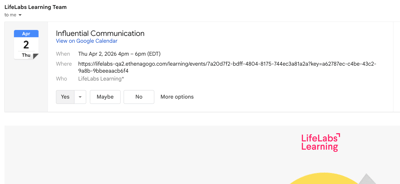
You're all set! Your sponsor has visibility to your RSVP status in the LifeLabs Learning platform.
Via Outlook
- Click the "Accept" button in the widget directly in the email.
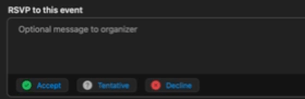
You're all set! Your sponsor has visibility to your RSVP status in the LifeLabs Learning platform.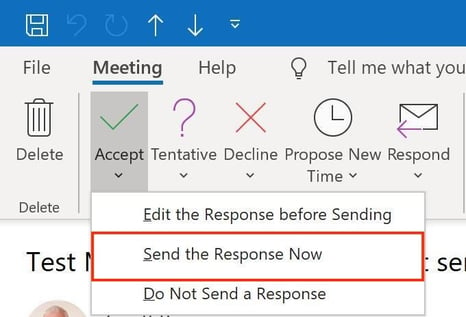
Important note: When accepting the invite via Outlook, be sure to click "Accept > Send Response Now" so that your RSVP is captured". If you select "Do Not Send a Response", your response will not be captured properly by the LifeLabs Learning platform.
Via your calendar
- Click "Yes" directly on the event in your calendar.

-
- You can also click into the workshop page from the link in the event description and learn more about the workshop content.
- You're all set! Your sponsor has visibility to your RSVP status in the LifeLabs Learning platform.
Resend an invite to yourself
1. Log in to the Learning Center and click on the relevant event card.
2. Click 'Resend invite' 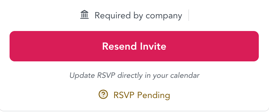
3. That's it! RSVP to the new invite and you should be all set. Reach out to support@lifelabslearning.com for additional support.
**Did you have issues RSVP-ing to an invite in April 2026?
Some Outlook users reported issues with receiving a calendar event with their invite notification in mid/late April. If this happened to you, here's what you can do to resend the invite and get a calendar event:
Decline an Invite
You can RSVP "No" to an invite when you initially receive it or you can change your status from "Yes" to "No" later on. To RSVP "No", you must update your status on the event on your calendar.
Via email
- Click "No" button in the calendar widget directly in the email.
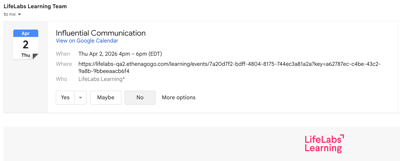
- You're all set! Your sponsor has visibility to your RSVP status in the LifeLabs Learning platform.
Via Outlook email
- Click the "Decline" button in the widget directly in the email.
You're all set! Your sponsor has visibility to your RSVP status in the LifeLabs Learning platform. Important note: When Declining the invite via Outlook, be sure to click "Decline > Send Response Now" so that your Declination is captured. If you select "Do Not Send a Response", your response will not be captured properly by the LifeLabs Learning platform.
Note: The event will disappear from your calendar after you decline.
If you want to update your RSVP, follow the steps below to resend your invite and change your status.
Via your calendar
- Click "No" directly on the event in your calendar.

- You're all set! Your sponsor has visibility to your RSVP status in the LifeLabs Learning platform.
Note: If you do not respond to an event invite within 7 days, you will receive an email reminder to prompt you to RSVP. This reminder is only sent to learners when the event is 8+ days after the invite is sent.
Resend an invite
1. Log in to the Learning Center and click on the relevant event card.
2. Click 'Resend invite'
3. That's it! RSVP to the new invite and you should be all set. Reach out to support@lifelabslearning.com for additional support.
**Did you have issues RSVP-ing to an invite in April 2026?
Some Outlook users reported issues with receiving a calendar event with their invite notification in mid/late April. If this happened to you, resend the invite to receive a calendar event.
FAQs
Does my RSVP status to the calendar event have an impact in the platform?
Yes. Your registration status for an event in the platform is directly impacted by your RSVP status to the event you received on your individual calendar.
Can my sponsor administrator see my RSVP from the calendar event?
Yes, sponsors can see your calendar RSVP status via the LifeLabs platform.
Will I be able to join the workshop regardless of my RSVP status? I.e., can I still join if I RSVP'd "No" or have not responded yet?
Yes. All invited learners can access the event page from their calendar event, where they will see a "Join now" button.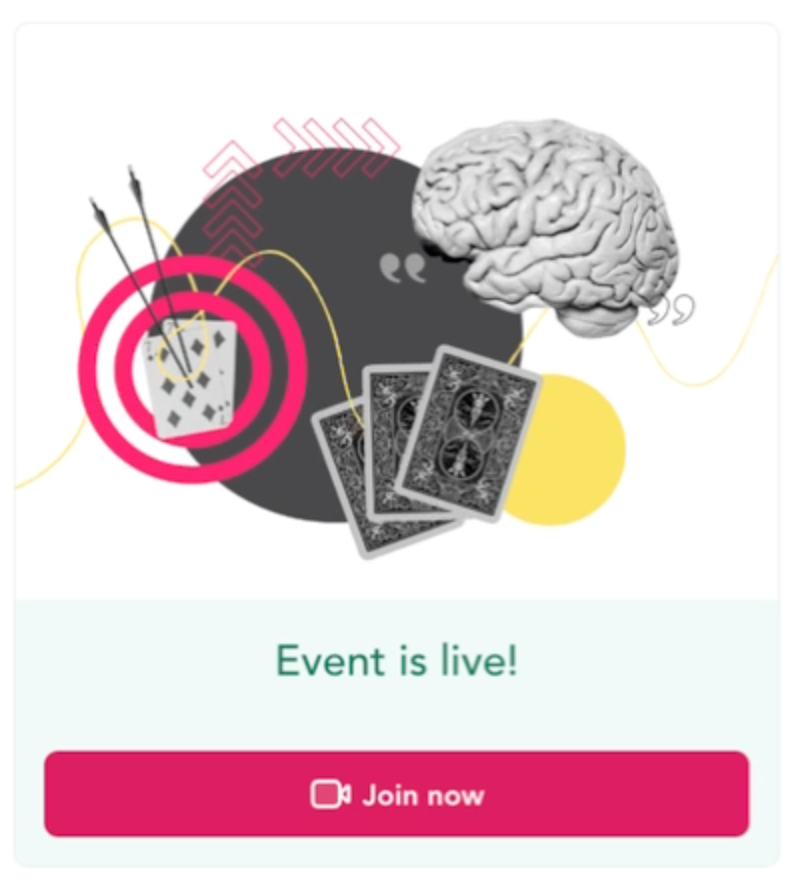
What happens if a workshop is rescheduled or cancelled?
You will receive a notification and your calendar will automatically be updated with the new information (e.g., new date/time/location, or removed altogether if the event is cancelled).
Legacy - Respond to an invite
You are viewing documentation for the previous version of the invite experience that applies to invites you received prior to April 14, 2026. Click here to respond to an invite you received AFTER April 14, 2026.
Learn about what's new with the current invites and how to tell which type of invite you received, if needed.
Once you accept, your seat is reserved, and your RSVP status is shared with your sponsor administrator. You’ll only receive a calendar event and a confirmation email after you accept the invitation.
Legacy - Accept an Invite
[For invites received prior to April 14, 2026. Received an invite after that? Follow these steps to accept.]
You can accept the invite either directly from the email or from your dashboard of the learning center.
Via email
- Click "Confirm" or "Accept" button directly in the email.
- You'll be redirected to the event page in the platform, and you should see a confirmation message pop up near the top of your screen.
- After you accept an invite, a calendar event will be added to the calendar linked with your email address and you'll receive a confirmation.
- You're all set!
Via the platform
- Click "Confirm" or "Accept" on the event card in your dashboard.
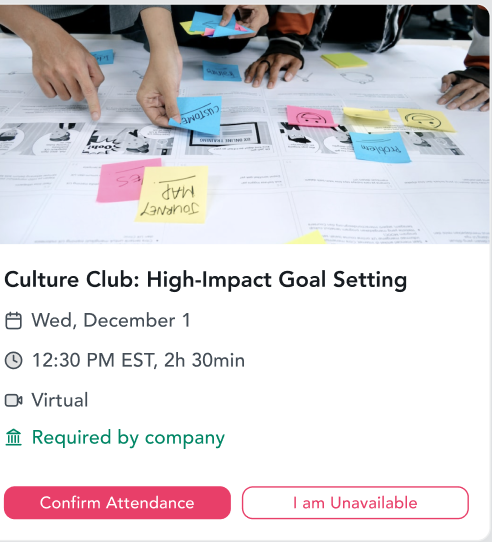
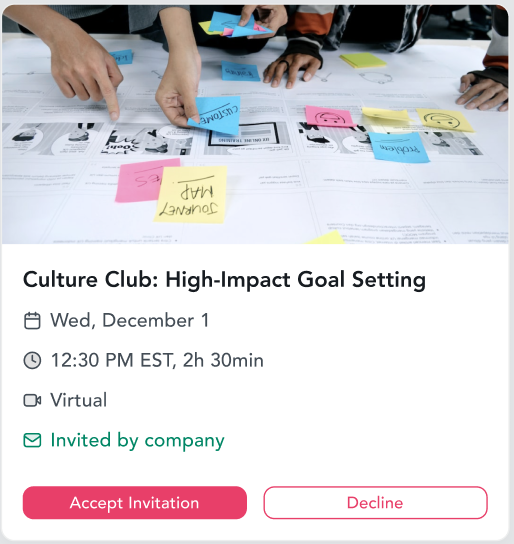
- You can also click into the event to learn more about the content and RSVP directly on the event page.
- When you confirm your registration for an event, a calendar event will be added to the calendar linked with your email address and you'll receive a confirmation.
- You're all set!
Legacy - Decline an Invite
[For invites received prior to April 14, 2026. Received an invite after that? Follow these steps to decline.]
You can decline an assigned registration when you initially receive it via email, or you can change your status from confirmed/accepted to declined later on. To update a registration, you must update your status in the learning center.
Via email
- Click "Decline" or "I am unavailable at this time" button directly in the email.
- You'll be redirected to the event page and your RSVP will be displayed on the left. If needed, you can "Cancel your registration" on the left side of the page.
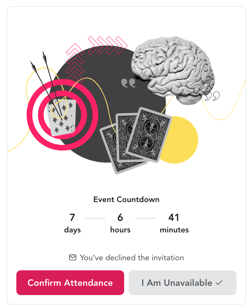
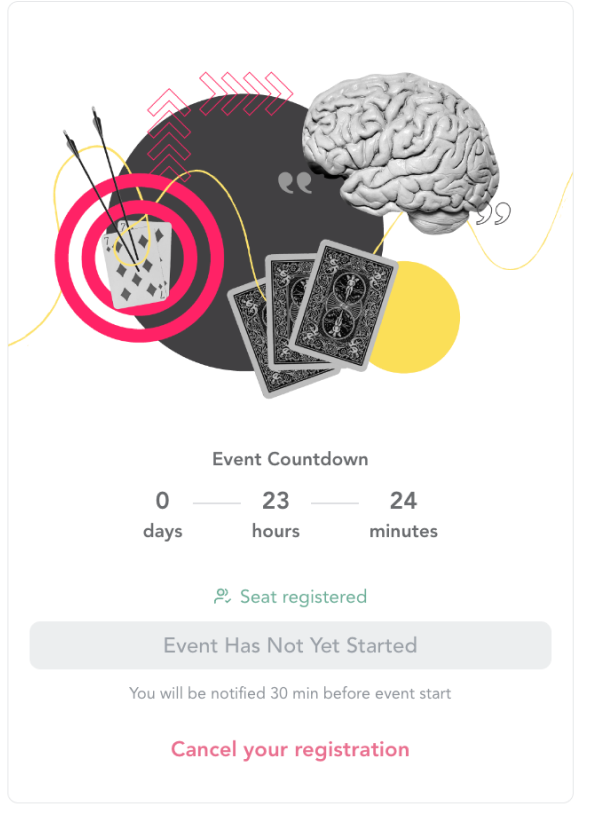
- You'll be redirected to the event page and your RSVP will be displayed on the left. If needed, you can "Cancel your registration" on the left side of the page.
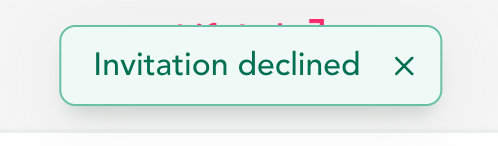
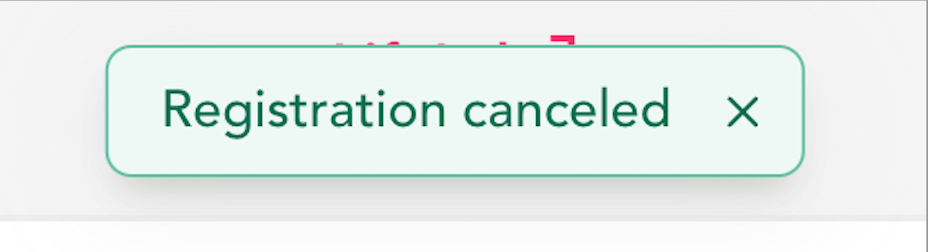
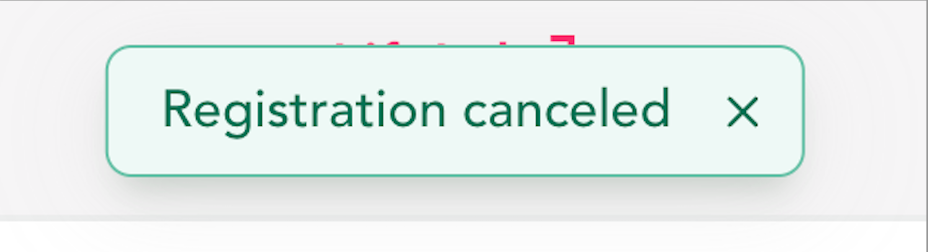
- You'll receive a confirmation banner at the top of the page that you are not registered or have unregistered.
-
- If you were previously registered for this event, we recommend removing the event from your calendar to reduce any confusion since this will not happen automatically.
Via the platform
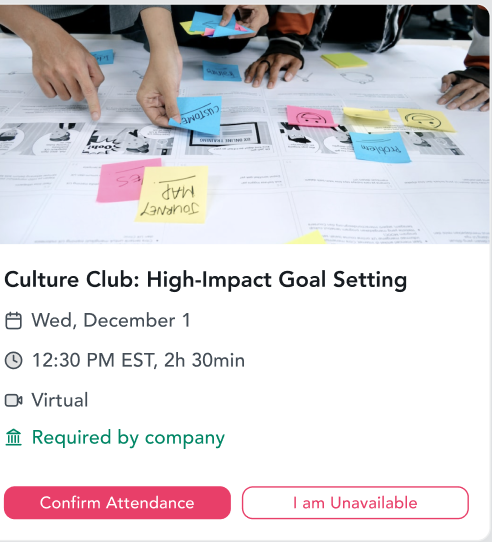
- Click "Decline" or "I am unavailable" on the event card in your dashboard. You can also click into the event page directly and RSVP there.

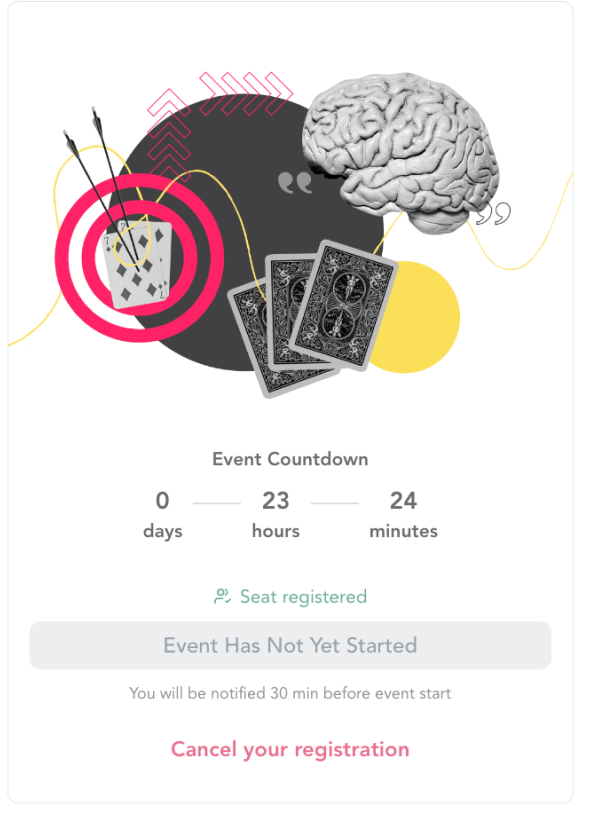
- If those options are not displayed because you previously accepted the invite, click into the event and then click "Cancel your registration" on the left side of the page.
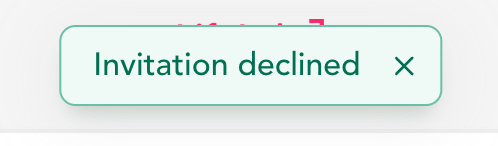
- You'll receive a confirmation that you are not registered or have unregistered.
- If you were previously registered for this event, we recommend removing the event from your calendar to reduce any potential confusion since this will not happen automatically.
- If you were previously registered for this event, we recommend removing the event from your calendar to reduce any potential confusion since this will not happen automatically.
Note: If you do not respond to an event invite within 7 days, you will receive an email reminder to prompt you to RSVP. This reminder is only sent to learners when the invite is sent at least 8 days prior to the event.
Legacy - FAQs
[For invites received prior to April 14, 2026]
FAQs are only listed below if the answer for legacy invites is different than the answer for current invites.
Does my RSVP status to the calendar event have an impact in the platform?
No. Your RSVP/registration status for an event can only be updated from the event page in the platform. You can access the event page from the invite email, the calendar event, or by logging into the platform directly (https://app.lifelabslearning.com/learning/my-dashboard).
New functionality for invites received after April 14:
Does my RSVP status to the calendar event have an impact in the platform?
Yes. Your registration status for an event in the platform is directly impacted by your RSVP status to the event you received on your individual calendar.
Can my sponsor administrator see my RSVP from the calendar event?
No, sponsors can't see RSVPs from legacy calendar events.
New functionality for invites received after April 14:
Can my sponsor administrator see my RSVP from the calendar event?
Yes, sponsors can see your calendar RSVP status via the LifeLabs platform.
What happens if I respond to an invite after an event was cancelled, completed, or all open seats were registered for?
You will be directed to the event page and will see an error message based on the reason you're unable to join. See screenshots below for an example of what the event page will display on the left side.
New functionality for invites received after April 14:
What happens if a workshop is rescheduled or cancelled?
You will receive a notification and your calendar will automatically be updated with the new information (e.g., new date/time/location, or removed altogether if the event is cancelled).
Current & Legacy versions - Key changes to the invite experience
What are the key differences between the current invite experience (released 4/14/26) and the legacy invite experience? Here's what has changed:
| Your interaction | Current Invites | Legacy Invites |
| Calendar | You instantly receive a calendar event -- no prior RSVP needed! |
You first received an email. You only received a calendar event after you RSVP 'yes' from the email. |
| RSVP |
You RSVP directly on your calendar event. This automatically updates your RSVP in the platform. |
You needed to log in to the platform to RSVP to an event. RSVP-ing (or changing your RSVP) on your calendar event had no impact on your RSVP status in the platform. |
| Join a workshop |
You can now join an event in just 2 quick clicks! Hit the hyperlink in your calendar event to immediately land on the event page, then click the "Join now" button. |
It could take up to ~8-10 clicks to join an event. You had to authenticate (i.e., log in) to the platform in order to view the event page, then make sure your RSVP status is 'yes' before clicking the "Join now" button. |
How can I identify a legacy invite? The easiest way is to look at your dashboard in the Learning Center.
-
-
Current invites show your RSVP status as "RSVP Accepted", "RSVP Declined", or "RSVP Pending" directly on the event cards.
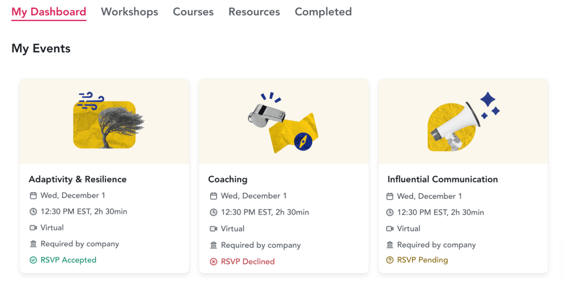
- Legacy invites show RSVP buttons directly on the event card.
-