To integrate the LifeLabs Learning platform and Slack:
- Navigate to the Settings page of your Admin Hub > Settings > Integrations > Communications
- Find the Slack tile and click "Connect". A Slack tile opens and click "Add to Slack"
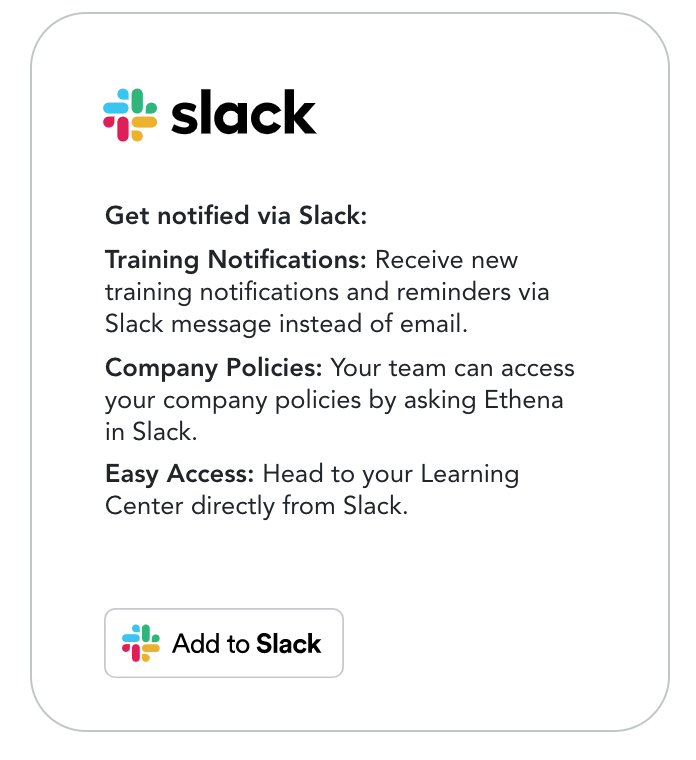
- Clicking this button will direct you to a Slack setup page. (if you are a Slack admin for your organization) or to a request form (if you are not a Slack admin for your organization). Follow the steps on the page to complete the integration.
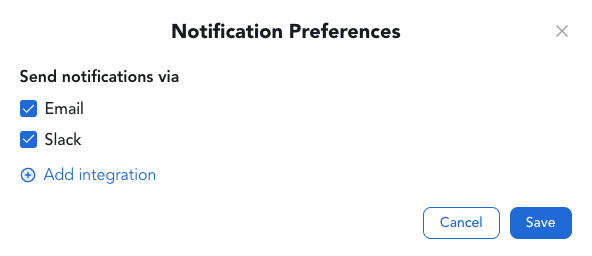
- Once the integration is complete, navigate to the Admin Hub > Settings > Notifications tab. Under NOTIFICATION SENT VIA click Edit
- Once the integration is complete, the Slack tile in LifeLabs Learning platform will show a "Remove Slack" button. On the Team Members page, members of your team for whom the integration with Slack has successfully synced will show a Slack icon next to their names.
**Note that it may take a few minutes after you integrate with Slack for these icons to appear. - If you see any team members who are not showing a Slack icon next to their name, it is possible that their Slack email address and LifeLabs Learning platform email address do not match. Check out this article for instructions on how to update the email address associated with a Slack account.
Once the integration is set up, team members will receive platform notifications directly in the Apps section of their Slack workspace.